Checkout Branch from Remote
 Reza Khosravi
Table of Contents

You're on a clean working tree, your usual local branches are visible, and a teammate says, “The feature branch is ready.” You run git branch, but the branch isn't there. Then git checkout feature-x fails because Git can't find a local branch by that name.
This situation is normal. The branch may exist on GitHub, GitLab, or another remote repository, but your local clone won't automatically create a local working branch for every branch someone pushes. To checkout a branch from remote, you need to identify the right remote, refresh your remote references, and create or switch to a local branch without disturbing your current work.
When the Branch Exists Only on the Remote
Your first instinct may be to run git checkout feature-x again. That won't help if Git hasn't learned about the branch, or if the branch belongs to a remote other than origin. A clean git status only tells you that your current local work is committed or saved. It doesn't prove that your local repository knows about the latest branches on a server.
Git separates local branches from remote-tracking branches. A local branch is the branch you work on directly. A remote-tracking branch is a local reference that records the state of a branch on a remote repository. Git stores these references under names such as origin/feature-x, following the remote/branch naming pattern described in the Git documentation on remote branches.
Why a branch can be visible online but not locally
Most clones use origin for the repository they were cloned from, but teams often add another remote called upstream, or a remote with a developer's name. A branch pushed to upstream won't appear under origin/*, and a branch pushed after your last network operation won't appear in your local remote-tracking references until you fetch.
That's why these commands can show different information:
git branchlists local branches only.git branch -rlists remote-tracking branches already known to your clone.git ls-remote --heads originasks the remote server what branch heads currently exist, without relying on your stale local references.
Practical rule: A branch being present on a hosting site doesn't mean your local Git client has fetched its reference.
The safe mental model is simple. Listing tells you where the branch is, fetching updates your local knowledge, and checkout or switch creates the local workspace branch. Fetching doesn't replace the files in your working tree, so you can refresh references before deciding which branch to use.
The typical sequence is therefore:
- Find the exact branch name and remote.
- Fetch that branch.
- Create a local tracking branch or let Git create one when the name is unambiguous.
That sequence avoids guessing whether feature-x belongs to origin, upstream, or another remote.
The Core Fetch and Checkout Workflow
Start by checking the remote-tracking branches your clone already knows:
git branch -rYou might see:
origin/HEAD -> origin/mainorigin/mainorigin/feature-xIf origin/feature-x is listed, Git already has a local reference for the remote branch. If it isn't listed, query the remote directly:
git ls-remote --heads originThis is useful when you need to confirm the exact spelling, including slashes and capitalization. Once you know the remote and branch, fetch it:
git fetch origin feature-xgit fetch downloads the remote reference and related objects without merging them into your current branch or changing the files in your working tree. If you need to refresh every configured remote instead, use:
git fetch --allCreate the local branch explicitly
The most predictable command is the explicit form:
git checkout -b feature-x origin/feature-xThis creates a local branch named feature-x, starts it from origin/feature-x, and configures the local branch to track that remote branch. The Atlassian Git checkout guide documents this historical pattern for creating a local branch from a remote branch.
On modern Git, a simpler command often works after fetching:
git checkout feature-xGit can treat this as a request to create a local tracking branch when exactly one remote has a matching tracking branch. That convenience is useful in a simple repository, but it becomes less reliable when multiple remotes expose the same branch name.
The modern branch-focused equivalent is:
git switch feature-xOr use the fully explicit form:
git switch -c feature-x --track origin/feature-xThe -c option creates the local branch, while --track records origin/feature-x as its upstream.
Verify what Git created
After switching, verify both the current branch and its upstream:
git branchgit branch -vvgit statusThe asterisk in git branch identifies the current branch. git branch -vv shows the upstream reference and whether the local branch is ahead of or behind it. git status confirms that you're on the intended branch and displays tracking information when an upstream is configured.
| Command | Purpose | Expected result |
|---|---|---|
git branch -r | List known remote-tracking branches | Shows references such as origin/feature-x |
git ls-remote --heads origin | Check branch heads directly on a remote | Shows branch references currently advertised by origin |
git fetch origin feature-x | Refresh one remote branch reference | Updates local knowledge without changing your working tree |
git checkout -b feature-x origin/feature-x | Create an explicit local branch | Creates feature-x from the selected remote branch |
git switch -c feature-x --track origin/feature-x | Modern explicit branch creation | Creates and configures a tracking branch |
git branch -vv | Inspect upstream configuration | Shows the local branch and its tracked remote |
If your Git installation predates git switch, use git checkout and its explicit -b and --track options. The important distinction isn't the command's age. It's whether you've selected the intended remote and created a local branch instead of merely viewing a remote-tracking reference.
How Tracking Branches Actually Work
A tracking branch is a local branch with an upstream configuration. Git stores the remote name and remote branch name in the repository configuration, commonly in .git/config. For example, a local feature-x branch may track origin/feature-x.
That relationship gives Git context for common commands. git status can report whether your local commits are ahead of or behind the upstream. git pull can fetch and integrate from the configured upstream without requiring a remote and branch name every time. git push can also use the configured destination instead of making you repeat it.
When Git guesses correctly
Git can automatically create a tracking branch when the requested branch name matches a uniquely available remote-tracking branch. For example, if only origin/feature-x exists, this may be enough after fetching:
git switch feature-xThe same principle applies to the checkout form:
git checkout feature-xGit's remote-branch behavior has evolved from the older explicit pattern toward this simpler experience. The modern git switch documentation explains how Git can guess a remote branch and create a tracking branch when the name is unique, and how options such as --no-guess disable that behavior.
When Git refuses to guess
Suppose both of these references exist:
origin/feature-xupstream/feature-xNow git switch feature-x doesn't contain enough information to choose safely. Git may refuse because the branch name is ambiguous. That refusal is helpful. Automatically tracking the wrong remote can send your future pulls and pushes in an unexpected direction.
Choose the remote explicitly:
git switch -c feature-x --track origin/feature-xYou can inspect the upstream of the branch you're currently using with:
git rev-parse --abbrev-ref @{u}To point an existing local branch at a different upstream:
git branch --set-upstream-to=origin/feature-x feature-xTo remove the upstream relationship:
git branch --unset-upstream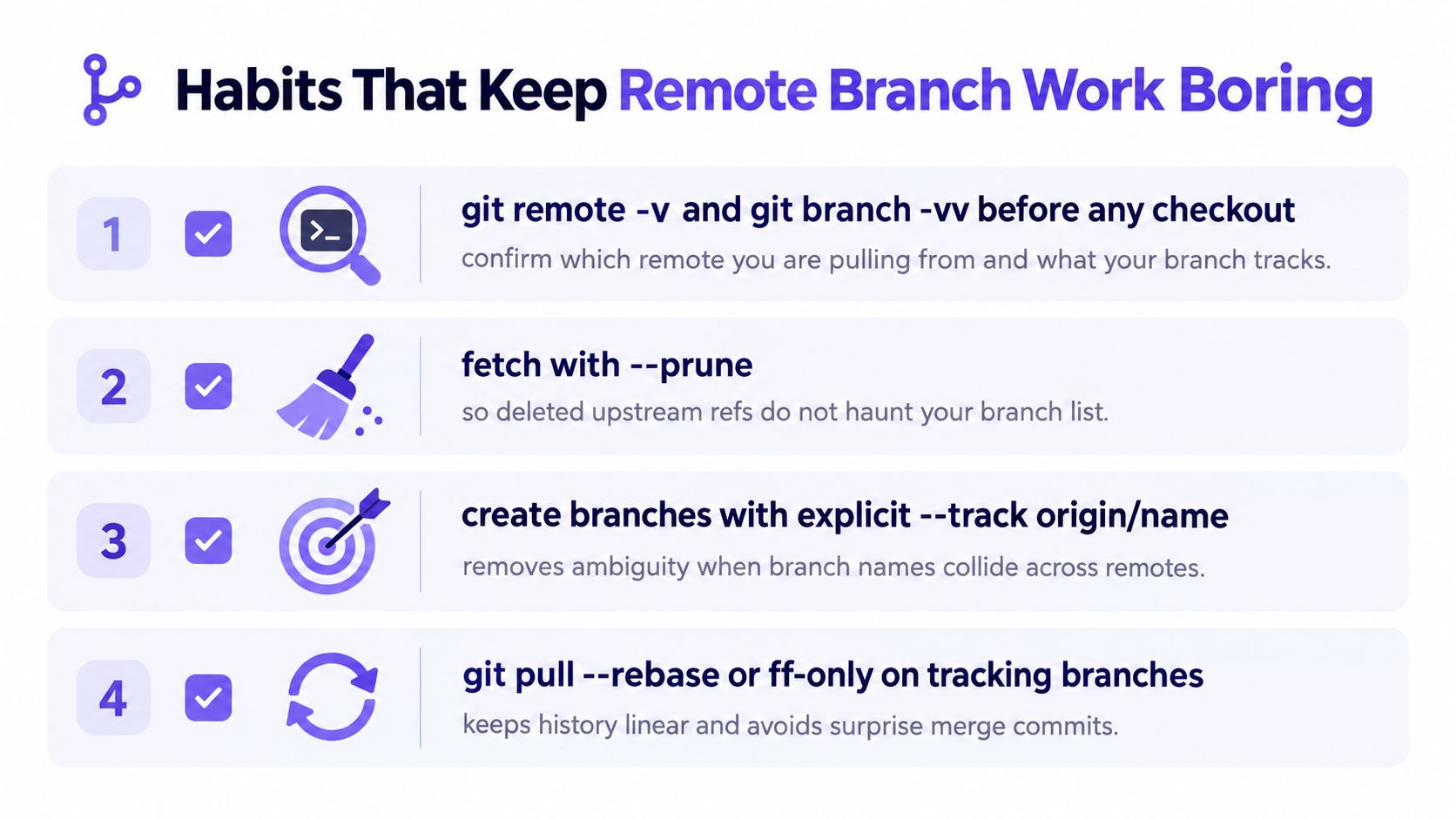
A remote-tracking branch is not a second working copy and it isn't a branch you should normally commit to directly. It's Git's local record of the remote branch's last fetched state. The local tracking branch is where you do your work, and the upstream relationship tells Git where that work should be compared or sent.
Checkout Versus Switch Versus Restore
git checkout is familiar because it handles several unrelated jobs. It can switch branches, create branches, check out a remote-tracking reference, restore files, and place HEAD in a detached state. That flexibility is powerful, but it also makes commands harder to read and mistakes easier to make.
For remote branch work, the command's intent matters. Compare the following:
git checkout feature-xThis may switch to an existing local branch or create a tracking branch when Git finds one unambiguous remote match.
git checkout -b feature-x origin/feature-xThis is explicit and works well when you need compatibility with older Git installations.
git switch -c feature-x --track origin/feature-xThis expresses the same operation with a branch-specific command. The local branch is created, its starting point is named, and its upstream is configured in one line.
Why switch is easier to reason about
git switch is dedicated to changing branches and managing branch creation. Its flags make the intent visible:
git switch feature-xchanges to an existing branch or uses Git's remote-branch guessing when appropriate.git switch -c feature-xcreates a branch from the current commit.git switch -c feature-x --track origin/feature-xcreates a local branch from a selected remote branch.git switch --detach origin/feature-xdeliberately checks out the remote-tracking commit without creating a local branch.
That last command can be useful for inspection, but it isn't the normal way to begin feature work.
git restore handles file content, not branch movement. For example:
git restore README.mdThis restores a file from the relevant commit context. It won't switch you to feature-x, create a tracking branch, or change the branch shown by git status.
| Command | Primary purpose | Use for remote branches? | Example |
|---|---|---|---|
git checkout | Legacy branch switching and other checkout operations | Yes, especially with explicit options | git checkout -b feature-x origin/feature-x |
git switch | Branch switching and branch creation | Yes, preferred for new workflows | git switch -c feature-x --track origin/feature-x |
git restore | Restore file content | No, it isn't a branch command | git restore README.md |
Use git switch for new branch work when it's available. Use git checkout when you're supporting an older environment or maintaining an established command style. Don't use git restore to change branches.
Real Workflows With Multiple Remotes and Similar Names
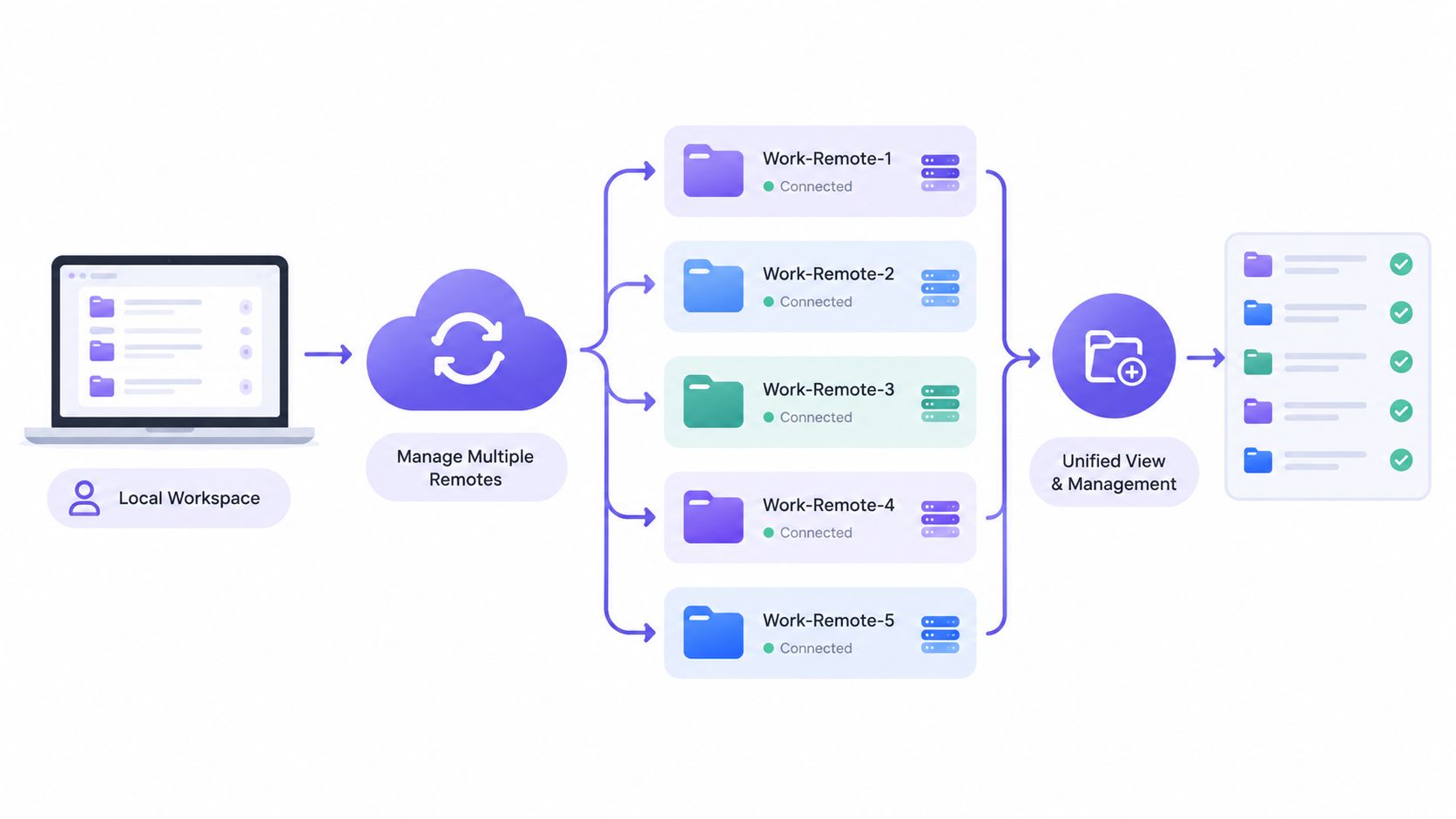
Multiple remotes turn a convenient command into a potential ambiguity. A fork-based repository often has origin pointing to your fork and upstream pointing to the canonical project. Both remotes may expose a branch named main, yet those references can point to different commits.
Scenario one, choosing between origin and upstream
First inspect the configured remotes:
git remote -vgit branch -rIf both references exist, qualify the remote when you only need to inspect or temporarily visit its branch:
git checkout upstream/mainThat checks out the remote-tracking reference directly, so HEAD will be detached. For regular work, create a local branch from the intended remote:
git switch -c upstream-main --track upstream/mainIf the local branch is called main, make sure you aren't already using that name:
git switch -c main --track upstream/mainVerify the result:
git branch -vvScenario two, identical feature names on two remotes
Assume both remotes contain feature-x. Don't rely on git switch feature-x to infer your intent. Fetch and create the local branch with the remote named explicitly:
git fetch origin feature-xgit switch -c feature-x --track origin/feature-xIf you need the version from upstream instead:
git fetch upstream feature-xgit switch -c feature-x-upstream --track upstream/feature-xUsing distinct local names is often clearer when you need to compare both branches. You can also inspect each remote directly:
git ls-remote --heads origin feature-xgit ls-remote --heads upstream feature-xThe verification command is:
git status -sbIt should show the local branch and its selected upstream.
Scenario three, detached HEAD after direct checkout
This command is valid:
git checkout origin/mainIt checks out the commit currently referenced by origin/main, but it doesn't create a local branch. Git reports a detached HEAD because new commits would not belong to a named local branch.
If you intend to work from that point, create a branch immediately:
git switch -c main origin/mainOr, using the older syntax:
git checkout -b main origin/mainIf you only inspected the commit and want to return to an existing local branch:
git switch feature-xCheck the final state:
git branch -vvgit status -sbRemote selection is also part of a secure delivery workflow. Teams that connect source control to automated builds and reviews can find related guidance on CI/CD pipeline security, especially when branch references determine what code enters a pipeline.
Fixing the Errors That Catch Everyone
Most remote checkout failures come from one of three causes: Git hasn't fetched the reference, the branch name is wrong, or the command left you on a remote-tracking reference instead of a local branch. The error text usually points toward the cause if you read it at face value.
Error messages and direct fixes
| Error message | Root cause | Fix |
|---|---|---|
error: pathspec 'feature-x' did not match any file(s) known to git | The branch hasn't been fetched, or the name is misspelled | Run git fetch --all --prune, then confirm with git branch -r |
fatal: 'origin/main' is not a commit | A remote reference was passed to a command that expects a different object or syntax | Create or switch to a local branch with git switch -c main origin/main |
Detached HEAD warning | You checked out origin/main directly | Create a local branch with git switch -c main origin/main |
fatal: ambiguous refname | Multiple remotes or refs share the requested name | Qualify the reference, such as origin/feature-x |
Already up to date when you expected new work | Your remote-tracking references may be stale | Fetch again before interpreting the result |
For the pathspec error, begin with the exact name:
git branch -rgit fetch origin feature-xgit switch -c feature-x --track origin/feature-xIf the branch still doesn't appear, check the remote itself:
git ls-remote --heads originA typo in feature-x, a branch renamed by a teammate, or a branch hosted on upstream produces the same frustrating first symptom.
Don't confuse a successful pull with current remote knowledge
git pull operates using the current branch's configured upstream. If that upstream reference hasn't been refreshed, a result such as Already up to date only describes the information Git currently has. It doesn't establish that you fetched every remote or discovered a newly created branch.
Use this refresh before retrying:
git fetch --all --prunegit branch -rThe --prune option removes stale remote-tracking references for branches that no longer exist on the remote. It helps keep the branch list aligned with the server rather than preserving old names indefinitely.
If Git reports an ambiguous reference, qualify both the fetch and branch creation:
git fetch origin feature-xgit switch -c feature-x --track origin/feature-xFor repositories where automation depends on branch names and environment values, it's also useful to review GitHub Actions environment variables alongside the repository's branch and workflow configuration. A correct local checkout won't fix a pipeline that selects a different ref.
Habits That Keep Remote Branch Work Boring
Reliable remote branch work comes from small checks, not clever shortcuts. Before switching, run:
git remote -vgit branch -vvThat tells you which repositories exist locally and what your current branches track. Refresh references with pruning:
git fetch --all --pruneWhen you publish a new local branch, set its upstream deliberately:
git push -u origin feature-xAfter switching, confirm both the working state and upstream:
git statusgit rev-parse --abbrev-ref --symbolic-full-name @{u}
Use explicit --track remote/name whenever a repository has multiple remotes or repeated branch names. For long-lived local branches that should never automatically follow origin, inspect and adjust the branch configuration directly with git config, including the branch's remote and upstream settings. Keep those decisions documented alongside your team's security policy application when branch selection affects controlled delivery paths.
DevArmor helps teams maintain continuous threat models, security design reviews, and Policy-as-Code enforcement across repositories, pull requests, and developer tools. If you want branch and code changes to carry clear security context through delivery, visit DevArmor to see how the platform fits into your workflow.
Table of Contents
Subscribe